Documentation Index
Fetch the complete documentation index at: https://docs.vidopix.com/llms.txt
Use this file to discover all available pages before exploring further.
Instavidiq product flow
Content Performance Testing – For Creators & Marketers Know if your video will work before you publish. Upload footage, ask PIXI, and get answers on engagement, drop-offs, emotion, and pacing without spending a dollar on distribution.- Upload your video. Ask Pixi. Get clear answers before media spend.
- Test ads before buying inventory and optimize content prior to publishing.
- Save budget by spotting weak scenes early inside Instavidiq.
Visual flow with screenshots
1. Authenticate and enter Instavidiq
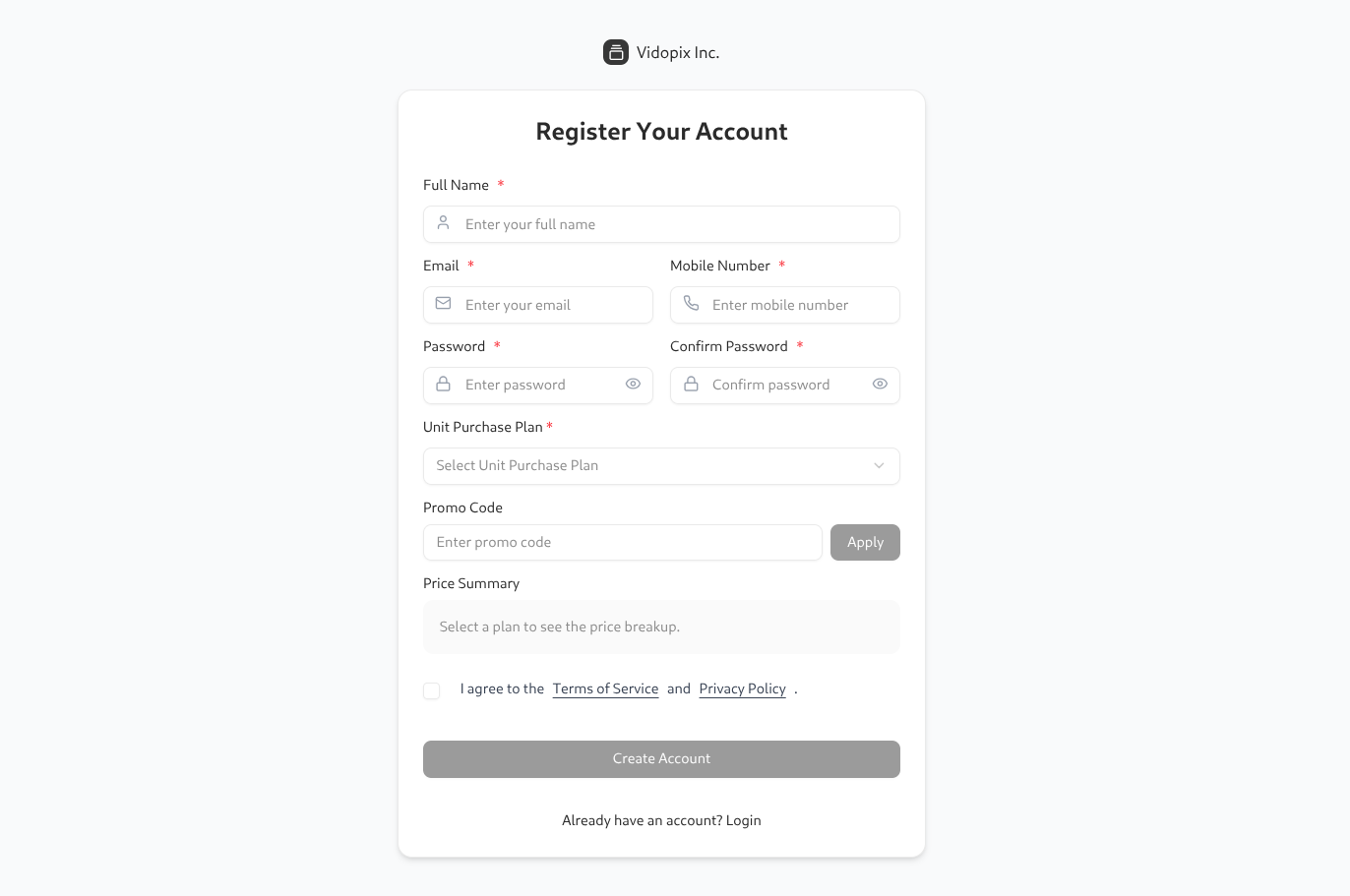
Sign in or create an account, then land on the Vidopix dashboard. Instavidiq is selected from the product entry card.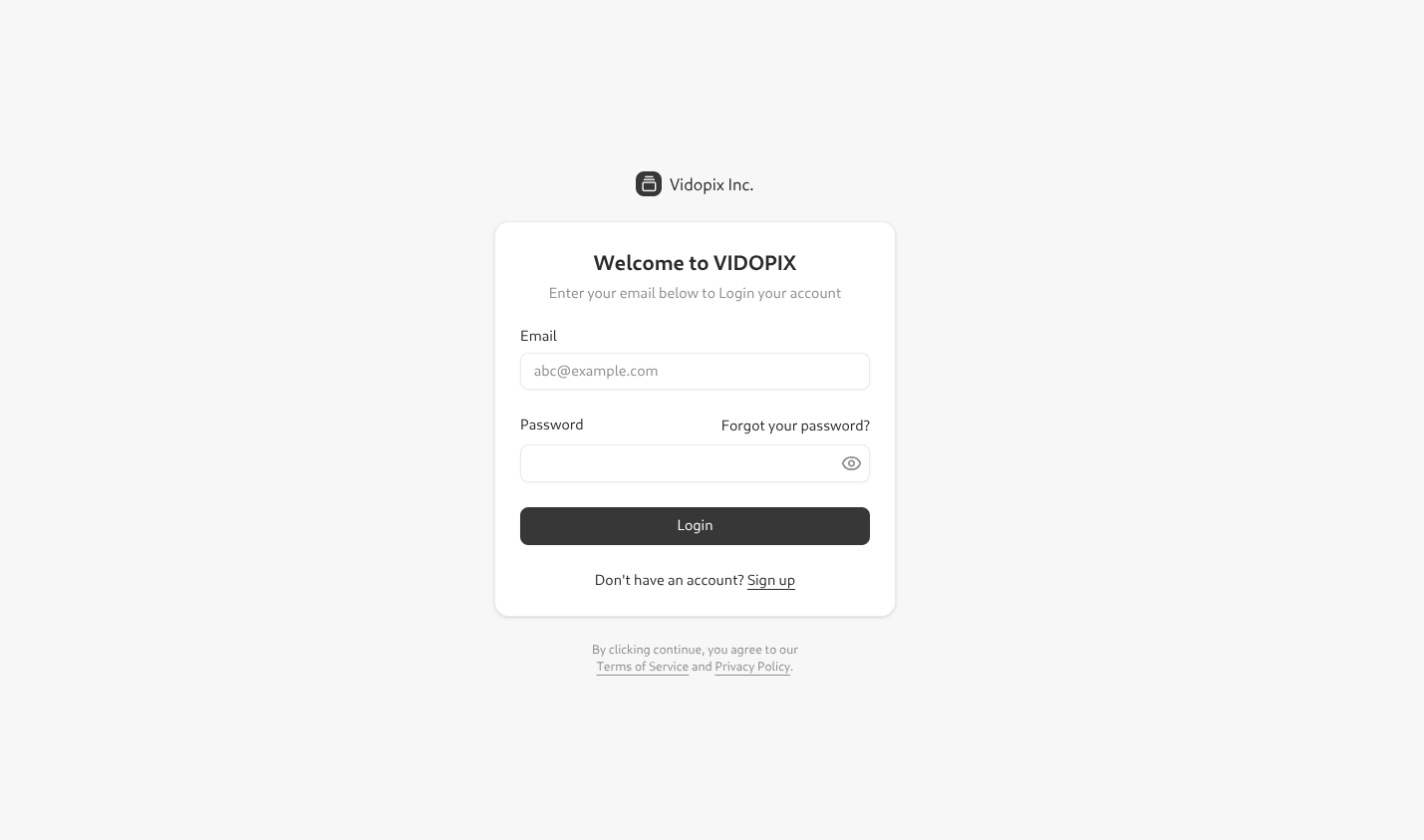
2. Organize work in folders
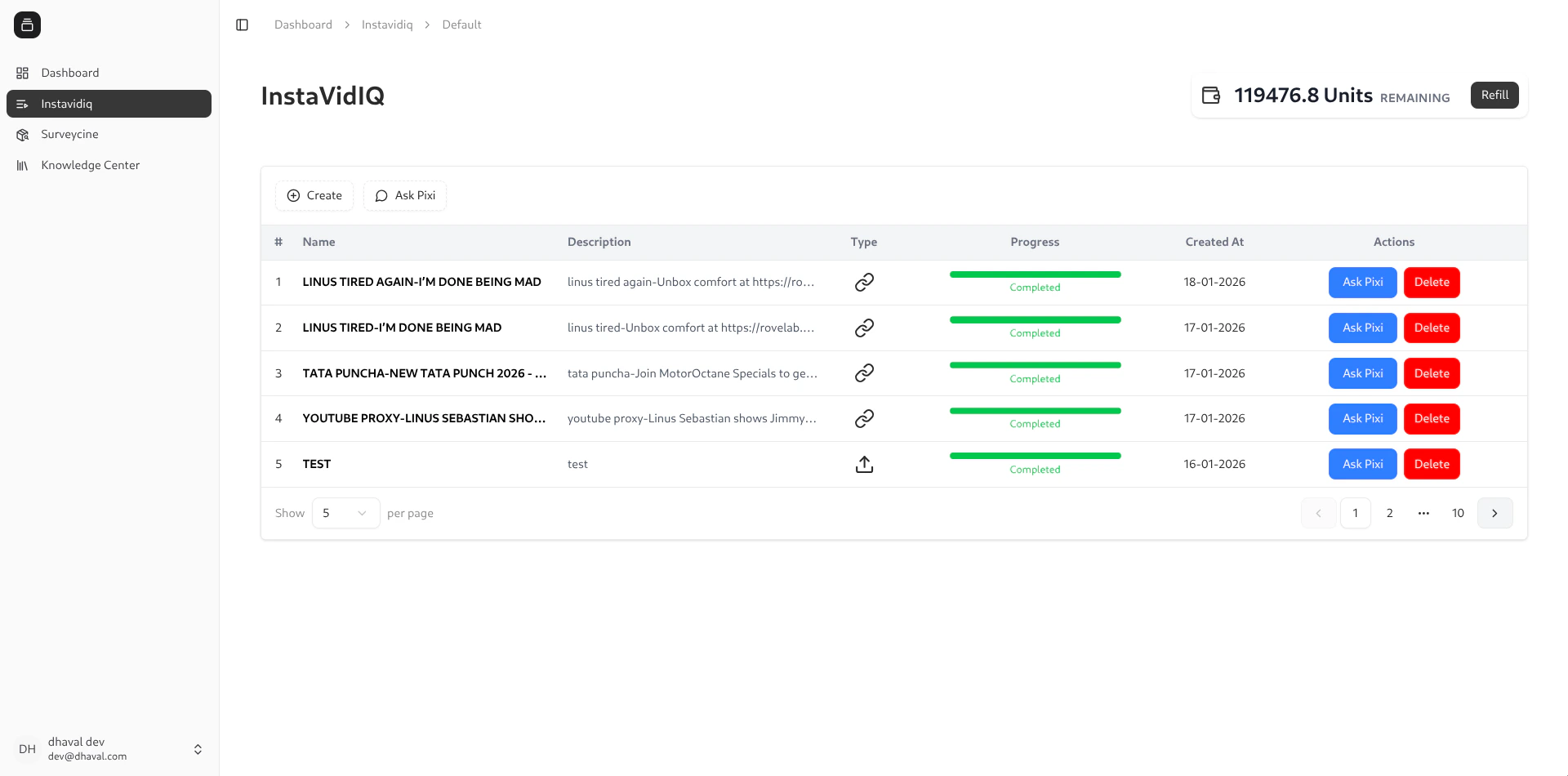
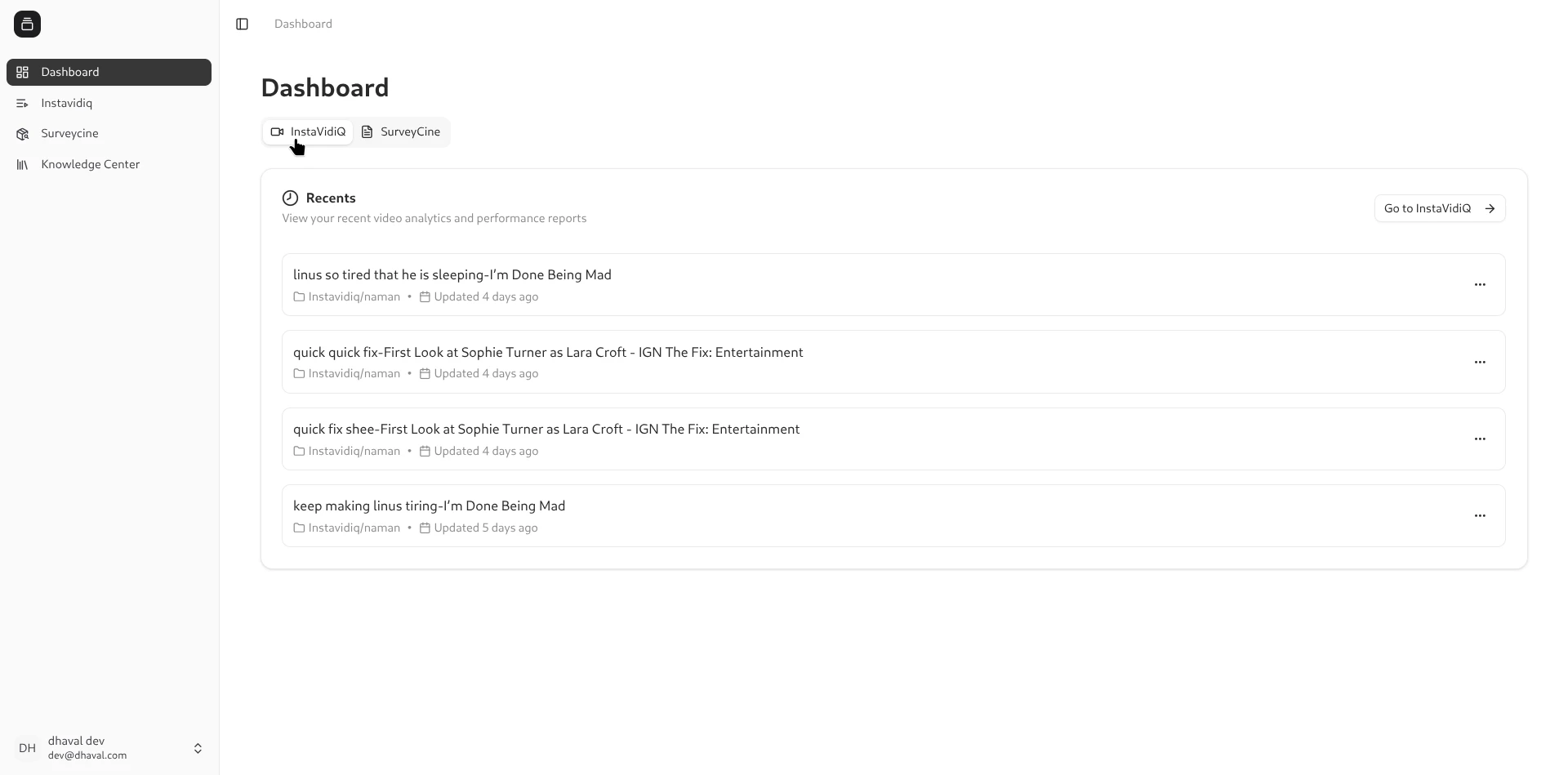
Folders are the workspace for projects. Teams label folders, upload multiple videos, and keep status visibility in one grid.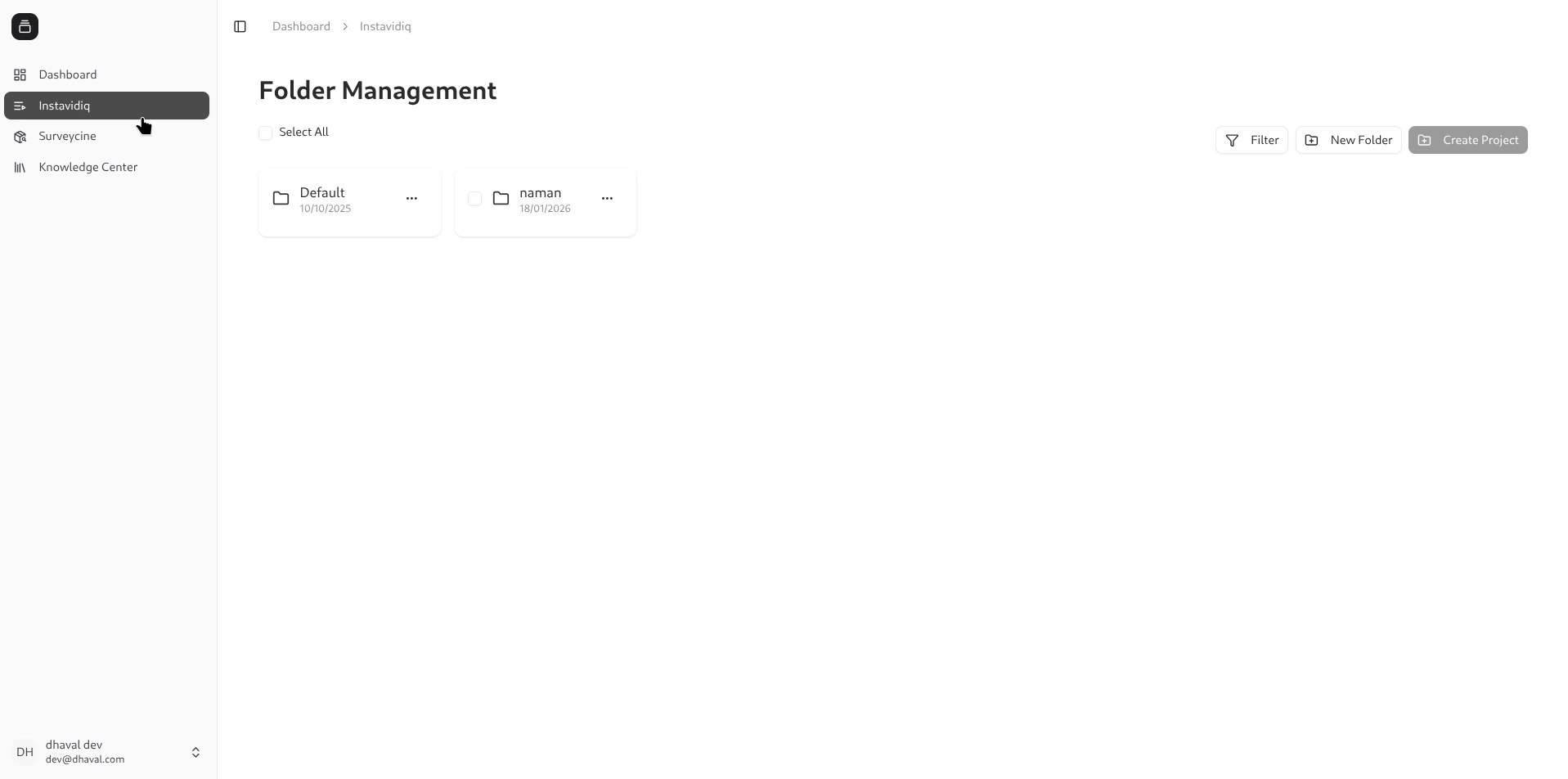
3. Manage project table and uploads
The folder table shows processing status, remaining units, and actions like reprocess, delete, and Pixi chat.4. Review analysis and insights
Once a project finishes processing, the analysis view combines video playback with emotion, pacing, and transcript context.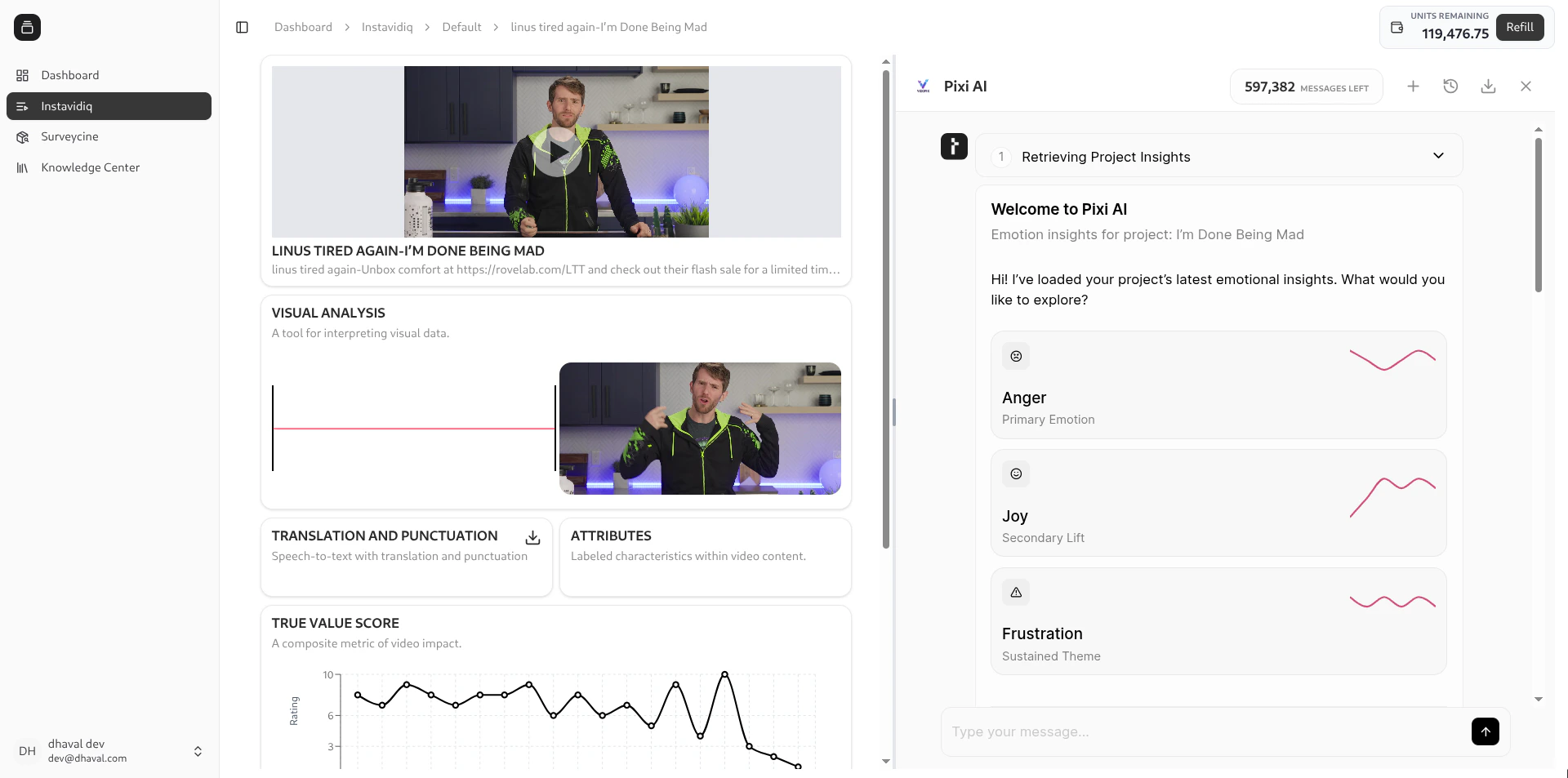
5. Ask Pixi across multiple videos
Open Ask Pixi from the folder view, select one or more videos, and ask PIXI AI anything about them. This helps compare cuts or summarize insights across a batch.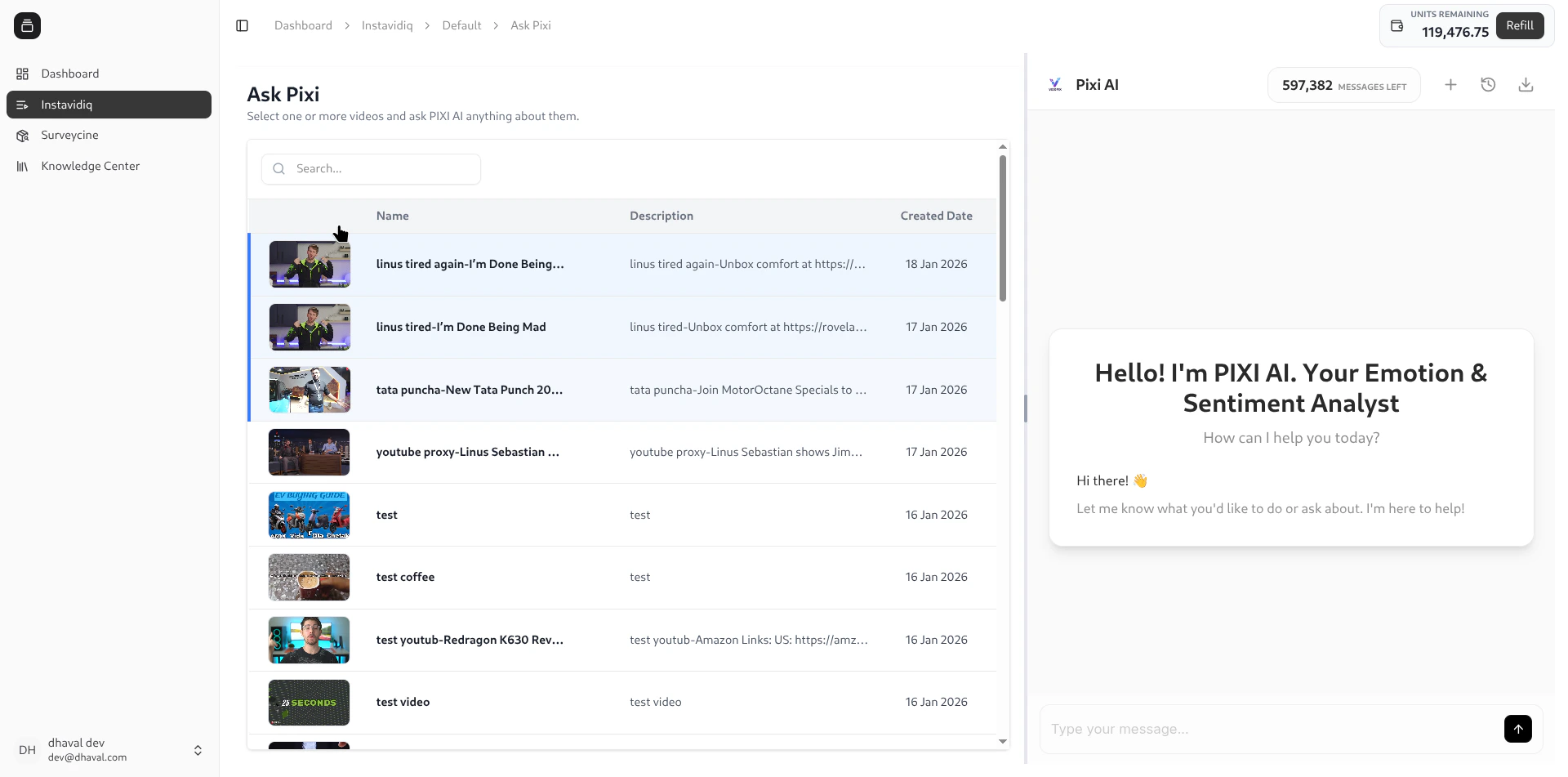
6. Collaborate with Pixi
Open Pixi chat to ask questions about one or more projects. Use it to summarize insights, compare versions, or flag weak moments.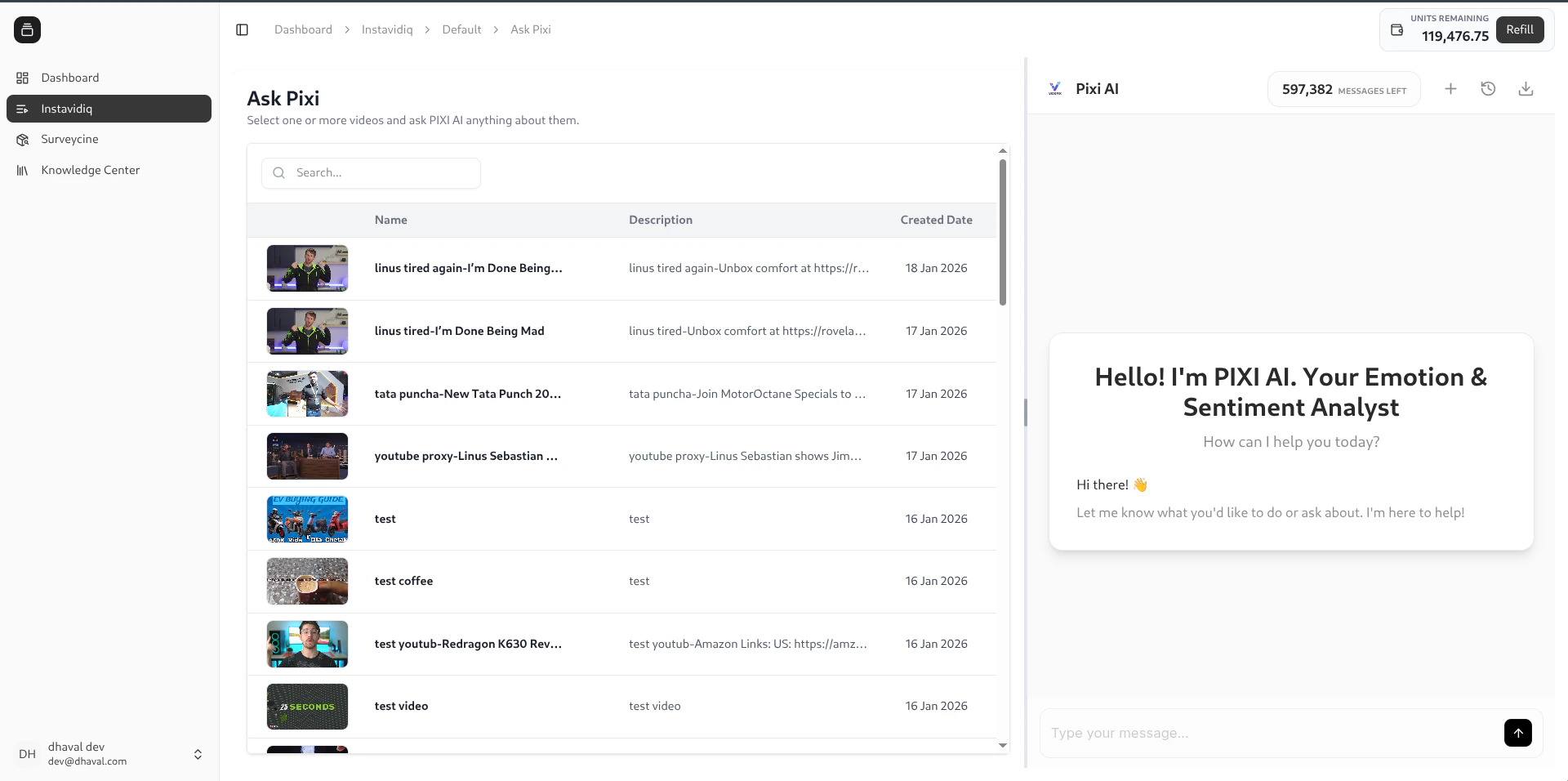
Flow summary
- Organize – manage folders and ingest videos.
- Process – watch project statuses progress.
- Investigate – open analytics and ask PIXI questions.
- Compare – select multiple videos in Ask Pixi for cross-video answers.
- Share – export project or folder reports for stakeholders.